AI image to image, in plain words.
Keep the photo you already have and change only what you ask for. One frame, one sentence, and the model rebuilds the scene around it. The person stays recognisable, the product stays the same product.
Start with a photo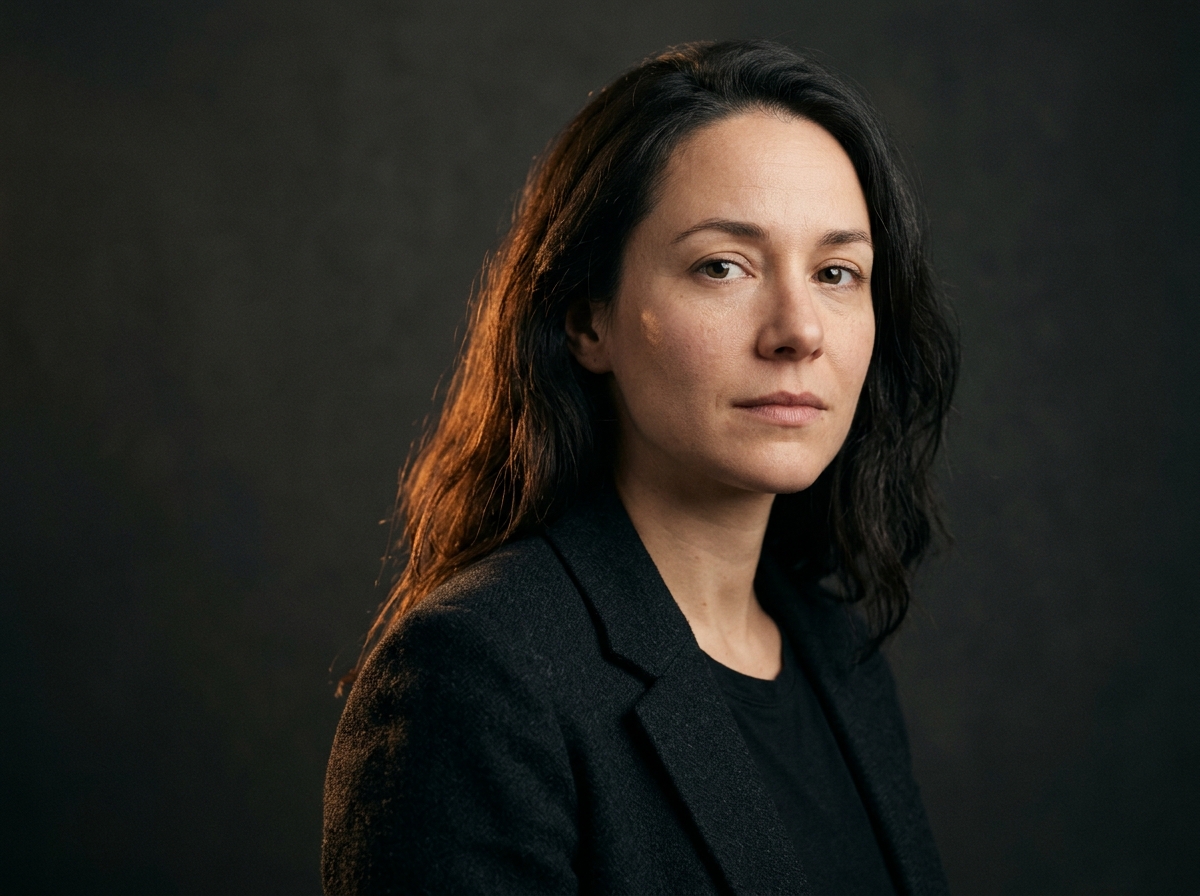
What AI image to image means
Image to image, usually written img2img or image-to-image, builds a new picture on top of an existing one. You upload a frame the model can read: its structure, its subject, the direction of the light, the colours already in it. Then a sentence tells it what to change. Everything you did not mention has a reason to stay.
Text to image starts from nothing but words. Image to image starts from your photo, which is why the result can hold a face, a product label or a room layout while the hour, the medium or the background changes around it. You trade the freedom to invent for control over what survives.
The same workflow turns up under several names: picture to picture AI, photo to photo AI, img2img, AI image editor. If you already have a picture and a sentence, you are in the right place.
 You upload
 You get back
See what AI image to image can do
Six pairs, same frame on both sides. The sentence printed under each one is the entire brief that was typed. Nothing else was touched.
 Before
 After
AfterA print that spent twenty years in a drawer
The scan arrived yellow, soft and flecked with dust. The restore pass cleaned the cast, brought the skin tones back and left the grain alone, so it still reads as a photograph instead of a render.
 Before
 After
AfterMidday haze, moved to last light
Flat light with the sun almost overhead, which is why the ridge had no shape. This image to image pass put the key on the left and dropped it twenty degrees. Same hiker, same size in frame, same rocks.
 Before
 After
AfterKitchen counter, lit like a set
One bulb overhead, clutter behind. The result keeps the mug and the label exactly where they were, swaps the light for a soft key from the left, and gives the counter a clean shadow to sit in.
 Before
 After
AfterA street portrait, moved to a plain sweep
Pedestrians and shopfronts out of focus behind him. The image to image pass took the street out completely and left him on grey, hair edges intact, a soft shadow behind the shoulder.
 Before
 After
AfterA garden portrait, turned into clay
Same woman, same shirt, same pose. Only the medium moved: matte plasticine skin, small fingerprints at the fold of the sleeve, warm practical light. The face did not drift with the style.
 Before
 After
AfterA soft crop of wool, rebuilt
A phone photo of a scarf, mush where the knit should be. The upscaler rebuilt the yarn and the loose threads, held the colour steady and did not touch the crop.
What the engine actually does
Four things decide whether a result is usable. Each one has a number you can hold us to.
It keeps the frame
Structure, perspective and the wall lines stay put. The strength slider runs 1 to 10 and starts at 4, so the first pass nudges the picture instead of rebuilding the room.
It keeps the face
Creative 2.0 is the model built for people. Below strength 6 the bones of a face hold. Past 8 they start to drift, and no amount of prompt wording brings them back.
It works at full size
Output matches your upload rather than a fixed square. Upscaler takes it to 2x or 4x, so a 2400 px file stays 2400 px instead of arriving as an 800 px thumbnail.
It finishes in seconds
Most runs land in 8 to 15 seconds at full resolution. Restore on a badly faded 1970s scan is the slow one, and it can take up to a minute.
Who uses it, and for what
Four jobs account for most of the traffic. All of them start from a photo somebody already had.
Sellers
A phone shot of stock becomes a listing image, and the label stays readable.
Photographers
The shoot happened at noon. The delivered frame looks like six in the evening.
Families
A drawer of prints, scanned badly. The faces come back before the paper does.
Designers
Mockups and sketches get a photographic finish without redrawing the layout.
Which AI image to image model to pick
Six models, one job each. Free covers the first two, Pro and Studio open all six.
| Model | Use it when | What it does | Plan |
|---|---|---|---|
| Creative 2.0 | Portraits and everyday edits | Balanced rebuild, holds faces and skin texture, about 11 seconds | Free |
| Basic 1.0 | Quick tests | Faster pass, less precise on faces and fine detail | Free |
| Restore | Scans, colour casts, creases | Removes dust and yellow casts, keeps the grain of the print | Pro |
| Upscaler | Small crops and print files | Rebuilds texture at 2x or 4x without smoothing skin | Pro |
| Background | Cutouts and clean sweeps | Lifts the subject off the original scene, keeps hair edges | Pro |
| Inpaint | Removing an object or a person | Rebuilds one masked area, leaves the rest of the frame alone | Pro |
How to run one
Three steps, in the order the buttons appear on the page.
Upload a photo
Drop a JPG, PNG or WEBP up to 20 MB on the generator card. A sharp file with even light gives the model more to hold on to. Phone shots are fine.
Pick a model, write one line
Creative 2.0 for people, Restore for scans, Inpaint to remove something. In the prompt, say what changes first and what must stay second.
Compare, then export
The result opens against the original. Move the strength slider if the change is too shy or too heavy, then download at full resolution as PNG or JPG.
Keeping the face, the product and the layout
The usual failure with image to image is a result that looks better and no longer looks like the person. Three things cause it: a prompt describing a different person, a strength setting pushed to the top, or a model that was never good at faces in the first place.
Name what must stay, in the sentence. "Keep the face, the jacket and the background" costs six words and saves a rerun. Then bring the strength slider down before you switch models. If the skin still goes plastic, the model is the problem, not the wording.
 You upload
 You get back
AI image to image vs text to image
Same engine family, different starting point, and that changes what you can control.
| Image to image | Text to image | |
|---|---|---|
| Starting point | Your photo | A sentence |
| What you control | Structure, identity, layout | Everything, from scratch |
| Best for | Restyles, relighting, product and portrait edits | New scenes, concepts, illustration |
| Weak at | Big changes that lose the subject | Keeping one specific face |
Pay for images, not seats
Pro and Studio run all six models. Free covers the two most used ones. Nothing else is locked.
Free
- Creative 2.0 and Basic 1.0
- Full resolution, no watermark
- Personal use only
- Results kept for 7 days
Pro
Most picked- All six models, Restore and Upscaler included
- Batch upload, 20 files at a time
- Commercial licence
- Results kept for 12 months
Studio
- Everything in Pro
- 5 seats and a shared folder
- API key, 60 requests a minute
- Invoices and a named contact
Questions people ask about AI image to image
What is AI image to image?
It generates a new picture from one you already have. The model reads the layout, the subject and the light, then rebuilds the scene under your sentence. Everything you did not mention stays where it was.
Is AI image to image free?
Two images a day, no account, no watermark. Pro is $12 a month for 300 images. Studio is $39 for 2,000, shared across five seats.
How is image to image different from text to image?
Text to image invents the whole frame from words. Image to image starts from your photo, so the person, the product and the layout survive the change. You give up the freedom to invent, and get back control over what stays.
Will it keep the person's face the same?
With Creative 2.0 and a strength setting around 4, yes. Push strength past 8, or describe a different person in the prompt, and the likeness drifts.
What should I write in the prompt?
What changes first, then what must stay. "Late afternoon sun from the left, keep the face and the jacket" beats a paragraph of style words.
Can I change one part of the photo and leave the rest?
Yes. Inpaint masks the area and rebuilds only that. You see the masked region against the untouched frame before you export.
Which models can I use, and what is each for?
Six. Creative 2.0 for portraits and everyday edits, Basic 1.0 for quick tests, Restore for scans and colour casts, Upscaler for 2x and 4x enlargements, Background for cutouts, Inpaint for removing an object. Free covers the first two.
What resolution and format do I get?
Full resolution on every plan, the same as your upload. Upscaler takes it to 2x or 4x. You can export PNG or JPG, with no watermark on any plan.
How long does one image take?
8 to 15 seconds at full resolution. Restore on a very old scan can take up to a minute.
Can I use the results commercially?
On Pro and Studio, yes. The Free plan is for personal use.
Do I need an account?
No. The first two images each day run without signing in.
What happens to the photo I upload?
It is not used to train models, and it is not passed to third parties for training. You can delete any image from its page, and backup copies roll off within 30 days. Results stay 7 days on Free, 12 months on Pro, until you delete them on Studio.
Two free images a day.
No account, no card, no watermark. Start with the photo on your phone.